Your IPTV Setup Guide for every device
Pick your device, follow this IPTV setup guide, and send us the details. We activate your line and stay with you until it plays.
Good to know: your first app activation is free, as a gift from us. If you get stuck at any step of this IPTV setup guide, message us and we do it with you.
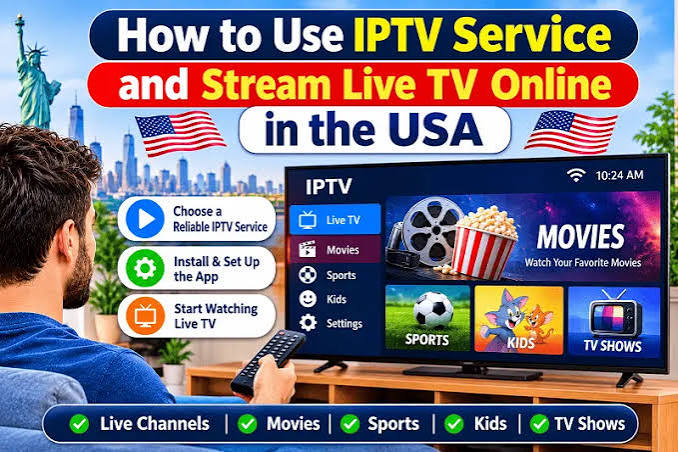
Before you start
A good start saves time. Check these four points before you open this IPTV setup guide on your device:
- Internet speed. Around 10 Mbps is enough for Full HD, 25 Mbps for 4K and 50 Mbps or more for 8K.
- Connection. An Ethernet cable or 5 GHz Wi-Fi gives the smoothest picture. Keep the device close to the router if you use Wi-Fi.
- Device updates. Install the latest system update on your TV, stick or box, then restart it once.
- WhatsApp ready. Keep your phone next to you. You will send us the details from the screen, and we answer with what you need to type.
Most people finish the whole setup in a few minutes. If your device is not listed below, tell us the model and we send you the right steps.
IPTV setup guide for Firestick & Android
On these devices we recommend the 8K VIP Player app.
- On your Firestick or Android box, install the Downloader app.
- In the device settings, allow apps from unknown sources for Downloader.
- Open Downloader and enter this code:
- Install 8K VIP Player and open it.
- Enter the username and password we send you. That is all the app needs.
Need pictures for step 2? The AFTVnews sideloading guide shows the setting on every Fire TV model.

IPTV setup guide for Samsung, LG & Sony TVs
- Open the app store on your TV and install one of the apps below.
- Open the app. It shows the details you need on the screen.
- Send those details to us on WhatsApp and we activate your line.
Apps that need MAC address + device key:
- IBO Player
- IBO Player Pro
- BOB Player
- TiviMate IPTV Player Pro
Apps that need the MAC address only:
- Smart IPTV
- Set IPTV
- Net IPTV
- Hot Player
TiviMate
TiviMate works with three details that we send you: username, password and URL. Open the app, choose to add a playlist, and enter them.
Note: TiviMate and TiviMate IPTV Player Pro are two different apps, so check which one you installed.
Apple TV, iPhone, laptop & PC
The same apps work here too. Install one of the apps listed above, open it, and send us the details it shows. Not sure which app fits your device? Tell us the device and we recommend one.
MAG Box
- Find the MAC address of your box. It starts with 00:1A:79.
- Send it to us on WhatsApp.
- We activate the service and send you a portal link.
- Enter the portal in your box settings and restart the box.
Common setup problems
- The app shows no channels. Check that the details were typed exactly as we sent them, then close the app and open it again.
- The picture stops or buffers. Move closer to your router, use 5 GHz Wi-Fi or plug in an Ethernet cable.
- The app asks for activation. Send us the details on the screen. Your first app activation is free.
- Your line stopped. Subscriptions never renew by themselves, so message us to renew.
Finished this IPTV setup guide?
No line yet? See the plans on the Best IPTV Subscription home page, or contact us for a free trial. Paid and not happy? Read the refund policy.